

Introduction to GoDaddy and cPanel
Want to know how to access GoDaddy cPanel??? so you are at the right place as GoDaddy is one of the leading domain registrars and web hosting providers globally, trusted by millions of users for its reliable services and intuitive management tools. Whether you’re a beginner launching your first website or an experienced developer, GoDaddy offers comprehensive solutions for domains, hosting, and more.
One of the most essential tools for managing your hosting effectively is cPanel. With this knowledge, you’ll be able to handle your hosting confidently and efficiently by regularly access GoDaddy cPanel. cPanel is a user-friendly control panel that allows you to handle everything from website files, databases, and domains to email accounts and security settings—all in one place. Understanding how to access cPanel GoDaddy is crucial to streamline your website management and maintain full control over your hosting environment.
In this guide, we will walk you through the process of accessing your GoDaddy cPanel and explore important features such as managing domains, creating subdomains, updating admin emails, and other essential administrative tasks. With this knowledge, you’ll be able to handle your hosting confidently and efficiently.
Explore Other Hosting Options
If you’re exploring hosting options beyond GoDaddy, check out our guide to the Ultimate 14 Web Hosting Services & Providers of 2024! to make an informed decision.
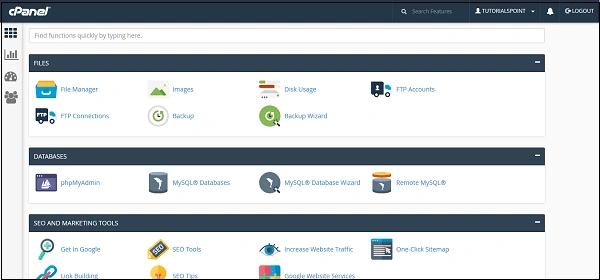
What is cPanel and Why You Need It
cPanel is a widely‑used web hosting control panel that simplifies website management by providing a graphical interface (GUI) and automation tools. With cPanel, you can manage everything from files, databases, domains, and DNS records to email accounts and security — all from a single dashboard. This makes it particularly useful for anyone running a website under an IT domain hosted via GoDaddy, or any similar provider.
Whether you are a beginner blogger or managing multiple client sites, cPanel streamlines tasks: creating addon‑domains or subdomains, installing CMS platforms with one click, managing files via a File Manager (without FTP), and configuring email accounts or forwarding directly from the panel. Moreover, cPanel brings powerful security and maintenance tools: SSL/TLS certificate installs, IP blocking, directory protection, automated backups, and resource‑usage monitoring. If you ever need to update site credentials — for example when you want to change GoDaddy admin email — cPanel makes it straightforward, giving you full control over email settings and admin access without requiring server‑level intervention.
Overview of cPanel Interface
The cPanel interface is intuitive and organized into sections such as Files, Domains, Email, Databases, Security, and Metrics. Each section contains icons that represent different tools, making navigation easy even for beginners. A clean dashboard lets you locate file managers, domain editors, email tools, and security settings with a few clicks — avoiding command‑line complexity altogether.
Key Features for Domain Management
With cPanel’s domain tools you can add new domains, create subdomains or addon‑domains, configure DNS zones (A, CNAME, MX, TXT), set up domain aliases or redirects, and manage DNS records. This is especially handy if you hold multiple domains under your hosting provider — or if you want to structure a website with a main domain and sub‑sections. It gives you the flexibility to manage everything from one hosting account, saving time and avoiding configuration errors.
How to Access cPanel in GoDaddy
Logging into Your GoDaddy Account
First, open your browser and visit GoDaddy.com. Click on “Sign In” and enter your account username and password. Once signed in, you’ll be taken to your account’s dashboard — where all your products (domains, hosting plans, email, etc.) are listed. If you registered NL or other domain types under GoDaddy (for example, about NL domains GoDaddy), you’ll see them here too under “Domains.”
Navigating to Your Hosting Dashboard
On your account dashboard (or “My Products” page), locate the section titled Web Hosting (cPanel). Under that section, find the hosting plan you want to manage and click the Manage button. This takes you to your hosting dashboard — where you can view plan details, assigned domains, and hosting-specific settings.
Accessing cPanel from Your Hosting Account
Inside the hosting dashboard, look for a button labeled “cPanel Admin” (usually at top‑right or in a prominent spot). Click it to be redirected to your actual cPanel interface.
Alternatively, if you know your domain name and it’s already pointed to your hosting account, you can open cPanel directly via a URL like https://yourdomain.com/cpanel or https://yourdomain.com:2083.
Once logged in to cPanel, you’ll have full control over files, databases, domains, DNS records, email accounts, backups, and more — all through a clean, web‑based interface.
Why This Matters
Knowing how to access cPanel in GoDaddy is especially useful when you want to add a new domain (for example, how to add domain in GoDaddy), manage multiple websites under one hosting plan, or modify hosting settings quickly without technical overhead. Whether you’re managing NL domains, .com, or others, having direct access to cPanel gives you flexibility and full control.
For detailed info on traditional hosting setups and cPanel compatibility, see our complete guide to Traditional Hosting – A Detailed Guide To Classic Web Hosting.
Managing Domains via cPanel
Adding a Domain in GoDaddy via cPanel
If you want to host multiple websites under a single hosting account, you can easily add a new domain through cPanel on GoDaddy. First, log in to your hosting account and open cPanel. Under the Domains section, click on Create a New Domain (or “Addon Domain / New Domain”).
Enter the full domain name — e.g. mynewsite.com — and optionally set a custom document root if you want its files in a dedicated folder (for example, /public_html/mynewsite). Then click Submit.
Once added, upload your website files into that folder via cPanel’s File Manager or FTP. Note: Make sure your domain’s nameservers or DNS A‑record point to the hosting server — otherwise your new site won’t go live.
Creating a Subdomain in cPanel (GoDaddy Subdomain Setup)
Want a sub‑section of your site — like blog.yoursite.com or store.yoursite.com? You can create a subdomain via cPanel: navigate to the “Subdomains” option under Domains in cPanel. Enter the subdomain name (e.g. “blog”), select the parent domain, and let cPanel auto‑generate the document root (or set a custom folder if needed). Then click “Create”.
This process — often referred to as “create subdomain GoDaddy” or “add a subdomain in GoDaddy” — is usually free and supported on GoDaddy’s cPanel hosting plans that allow addon/sub‑domains.
After creation, upload the sub‑site’s files into its directory. Once DNS and hosting settings are correct, the subdomain will work like an independent site under the same hosting account.
Changing Your Primary Domain in GoDaddy
Sometimes you may want to change the main domain that your hosting account uses — for example when rebranding or moving to a new domain. On GoDaddy, changing the primary domain depends on the type of hosting: for Windows/Plesk hosting, there’s a built‑in option to “Change” the primary domain from the account dashboard. However, if you’re using cPanel (typical Linux hosting), GoDaddy’s public documentation focuses on adding addon domains or subdomains rather than changing the primary domain directly via cPanel. In many cases, changing the primary domain requires either migrating content to a new account, or using webhost‑level tools (like WHM) — because simply flipping domains within a cPanel account can lead to issues. Therefore, before attempting a “change primary domain GoDaddy / cPanel” operation, make sure to backup all website files and databases. Then consult GoDaddy support or your hosting provider for the correct procedure.
Managing domains through cPanel gives you flexibility: whether you want to host multiple independent websites or subdivide a site via subdomains, cPanel + GoDaddy lets you do it quickly without buying separate hosting plans.
Optimizing your domain hosting for performance? Check out our guide to Why SSD Hosting Remains a Powerful Choice in 2025 for speed and reliability tips.

Looking for reliable and fast web hosting? HostArmada offers SSD-powered hosting with excellent support and speed.
Start Hosting with HostArmadaManaging Emails and Admin Settings in GoDaddy
How to Change Admin Email in GoDaddy
If you want to change admin email GoDaddy uses for your account or domain, first log into your GoDaddy dashboard. Navigate to My Profile (or “Account Settings”) from your account menu. There, you can update the primary email address associated with your account — GoDaddy will typically send a verification code to the new email, which you must confirm to complete the change.
Note: Changing your account’s profile email affects login and account‐notification emails. This is different from the “registrant/admin contact email” linked to your domain WHOIS — that must be updated via domain settings if needed.
Adding Users and Admins to Your GoDaddy Account
If you run a team or agency, you might want to add user to GoDaddy account or add admin to GoDaddy account. For example, when using GoDaddy’s email or business tools like Microsoft 365, you can assign admin permissions for email and Office services to other users. In the Email & Office Dashboard, select the user, click “Manage,” then edit their permissions to grant or revoke admin rights.
Always ensure that at least one account retains admin privileges. We also recommend enabling two‑step verification (2SV) or multi‑factor authentication (MFA) on all admin accounts — this reduces risk if login credentials are compromised.
Tips for Secure Email & Account Management
For better security and management hygiene: use strong, unique passwords for each GoDaddy user; enable 2SV/MFA whenever available; limit admin privileges only to accounts that truly need them.
When you create email accounts in your cPanel hosting, use secure passwords, enable spam‑filtering or email‑filter rules via cPanel’s Email Filters feature, and regularly review user list to remove outdated or inactive accounts.
Finally, maintain backups of all important email data and credentials — especially if you plan to change admin email, update account owners, or restructure access permissions in the future.
Updating Nameservers and Domain Transfers
Changing Nameservers in GoDaddy
If you want to point your domain to a different hosting provider, you can easily change nameservers GoDaddy uses. Log in to your GoDaddy Domain Control Center and go to your Domain Portfolio. Select the domain you want to update, then go to DNS / Manage DNS. Scroll down to the Nameservers section and click Change.
You have two main options: use GoDaddy’s default nameservers (so DNS stays managed in your GoDaddy account) or enter custom nameservers provided by your hosting provider (for example, if you are migrating to a different host). After entering custom nameservers, click Save (and confirm if two-step verification is enabled).
Keep in mind: DNS propagation can take anywhere from a few minutes up to 48 hours globally. During this period, your website or email might experience temporary downtime — so plan accordingly.
Steps for Domain Transfer in GoDaddy
Want to move a domain from another registrar to GoDaddy? Follow the official GoDaddy transfer domain steps: first unlock the domain at your current registrar, get the authorization (EPP) code, then go to GoDaddy’s “Transfer Domain” page and enter the code to initiate transfer.
If your domain was recently registered or you updated its WHOIS/contact info, note that many registrars — including GoDaddy — place a 60‑day transfer lock preventing immediate transfer.
Once you submit the transfer request and payment (if required), the process usually completes within 5–7 days. After transfer, GoDaddy becomes the registrar — you can manage DNS, hosting, and contacts from your GoDaddy account.
Updating Domain Ownership or Changing Domain Name
You might wonder: “can you change your GoDaddy domain name?” — technically, you cannot simply rename a domain. To switch domain names, you need to register a new domain or transfer a different existing domain, then repoint or migrate your site accordingly. This is essentially the method referred to when you act on “GoDaddy change domain name.”
For ownership changes (e.g. transferring domain to another person/account), GoDaddy offers an option to transfer domains to another GoDaddy account, retaining DNS settings. This ensures continuity for websites and services tied to the domain.
Always ensure you update all relevant DNS records and notify your host or clients about potential propagation delays. Backup any important zone‑files or email configurations before initiating changes.
For official instructions, visit GoDaddy’s cPanel help page.
Common Issues & Troubleshooting
Even with a smooth interface, users often face issues when trying to access GoDaddy cPanel, especially after recent platform changes. Most problems arise from login credentials, domain configuration issues, or outdated admin settings. Below are the most common errors and updated troubleshooting steps based on GoDaddy’s 2025 workflows. These fixes ensure you regain account access, restore domain connectivity, and keep your administrative details accurate.
cPanel Login Problems
Login failures usually occur due to incorrect passwords, disabled 2FA, or expired hosting plans. Always verify your GoDaddy login email and reset your password if you see repeated login attempts blocked. If your hosting has expired, cPanel will not load until the plan is renewed. Make sure your account email is updated to avoid missing verification codes when trying to access GoDaddy cPanel.
Domain or Subdomain Errors
If your domain isn’t pointing correctly, cPanel may not detect your hosting environment. Check your DNS records to ensure they match GoDaddy’s default nameservers. Domain misconfigurations also cause errors like “subdomain not resolving.” Re-add the subdomain in cPanel’s Domains panel and flush DNS if the update doesn’t reflect immediately.
Admin Email Not Updating
Admin email update failures happen when ownership verification is pending. Always confirm the previous email’s verification link. If you no longer have access to it, use GoDaddy’s “Update Login Email” request with identity verification. This ensures your admin email syncs properly across billing, DNS, and cPanel access.
Pro Tips for Faster Troubleshooting
- Clear DNS cache using ipconfig /flushdns (Windows) or sudo dscacheutil -flushcache (macOS).
- Use GoDaddy’s System Status page to verify if there’s an outage.
- Disable VPN or proxy; they can block cPanel login sessions.
- Check browser autofill — many login failures happen due to saved old passwords.
- For domain errors, verify your “A Record” points to your hosting server’s IP.
ChemiCloud offers fast, secure, and stable hosting with excellent 24/7 support — perfect for beginners and experts.
Try ChemiCloudTips to Maximize GoDaddy Hosting
To get the best performance from GoDaddy hosting, you need to consistently access GoDaddy cPanel and use its built-in tools for optimization. Many users only explore basic features, but cPanel includes powerful options for speed, security, and domain management. When you regularly access GoDaddy cPanel and check key settings, you maintain faster loading times, stable uptime, and improved site protection. These practices become essential as your website grows and you frequently access GoDaddy cPanel for updates, backups, and administrative tasks.
Regular Backups in cPanel
Use the Backup Wizard or JetBackup (if available) to automate daily or weekly backups. This protects your files, databases, and emails before plugin updates, migrations, or DNS changes. Regular backups reduce downtime and speed up recovery.
Using Subdomains for Organizing Websites
Subdomains help you structure your site better—blogs, stores, landing pages, staging areas, or demo sites. They improve SEO clarity, reduce clutter on your main domain, and speed up testing or development workflows.
Securing Your Admin Account
Enable 2FA, update admin emails regularly, use strong passwords, and review login history through cPanel security tools. Monitoring access logs and limiting user permissions helps protect domains and hosting files from unauthorized changes.
Conclusion
Understanding how to access cPanel GoDaddy gives you complete control over your website’s hosting environment. From managing domains and emails to optimizing performance and organizing subdomains, every essential tool is available inside your hosting dashboard. When you regularly access cPanel GoDaddy, you maintain better security, faster updates, and a smoother workflow for all hosting tasks.
With the right approach and consistent management through cPanel, your GoDaddy hosting environment can stay fast, secure, and fully optimized for long-term growth.